Call transcripts and dictation, in detail
The short version is on the home page. Here is all of it: what a call leaves on disk and how long its transcript takes, how speaker labels and summaries work, and how dictation behaves.
One call, one folder of ordinary files.
Start a recording and Saykeep captures your mic and what your Mac plays, straight from macOS: Zoom, Meet, Teams, a Slack huddle, a browser tab. No bot joins the call, and there’s no audio driver to install. After the call you get the transcript with who said what, as ordinary files.
Demo is sped up. An hour of call on an M5: ~35 min with speaker labels, 3–7 min without.
transcript.md
[00:04] You: Scope locks Friday, then the beta ships. Charlotte, can you write the announcement? Sebastian, the setup guide?[00:11] Speaker 1:Charlotte: Sure, I'll write it.[00:19] Speaker 2:Sebastian: Ready by Friday.
sample meeting · you name the speakers
summary.md
only with a model you connect## Topics- The beta ships once scope is locked.## Decisions- [Decided]: Lock the scope on Friday.## Action items- [Charlotte]: Write the announcement.- [Sebastian]: Have the setup guide ready by Friday.
When the call ends, Saykeep makes the transcript in the background
About 35 minutes per meeting-hour with speaker labels, which are on by default, on the M5 we measured; about 3–7 minutes with them switched off (Settings ▸ Transcription ▸ Speaker labels). Older Macs are slower, and we haven’t measured them yet.
Scaled from real 10–17-minute recordings. The transcription itself runs on your Mac’s GPU; speaker labelling runs on the CPU and finishes before the transcript is written, which is why it sets the wait.
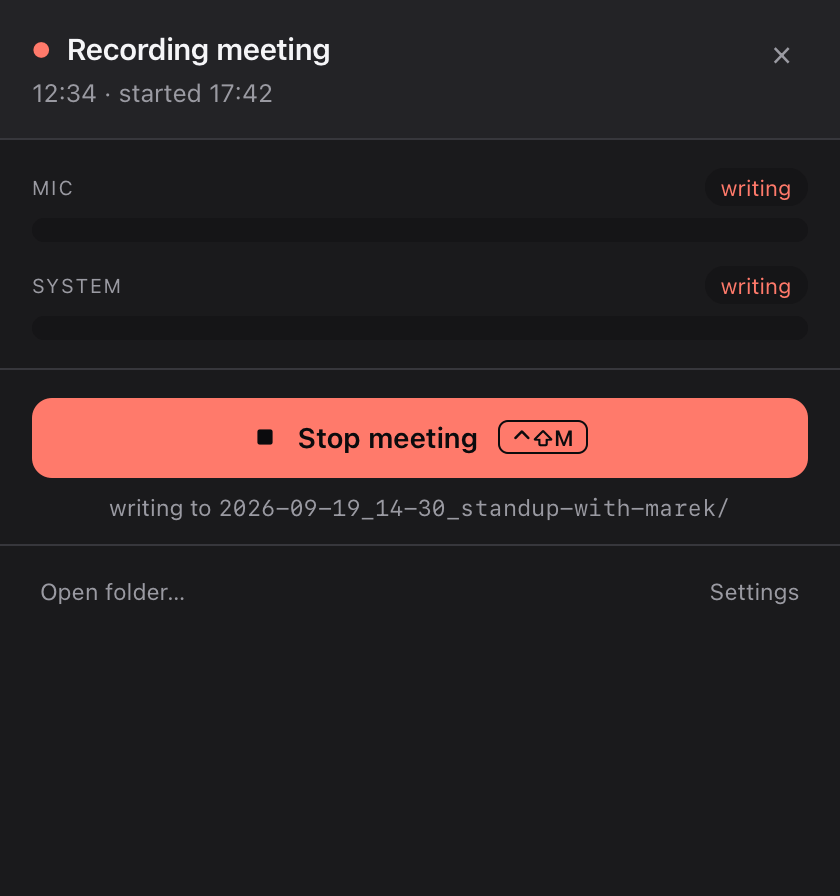
Recording is visible by design
Whenever Saykeep is recording a meeting, the menu-bar icon shows it the whole time, and no setting turns that off — a test sweeps every setting to keep it so. Before your first meeting recording, a plain-language notice says recording may need every participant’s consent and names jurisdictions to be aware of. The indicator is on your screen only: Saykeep sends nothing into the call, so telling the other people is up to you.
“I’m recording this for my notes, on my computer — is that OK?”
Is it legal to record your calls? →
Audio you can let go of
Keep the audio (the default), have Saykeep delete it once the meeting’s transcript is written, or have it ask you each time you stop a meeting: Settings ▸ Privacy & Storage ▸ Recordings. Audio is deleted only after a transcript exists; transcripts and summaries are never deleted automatically.
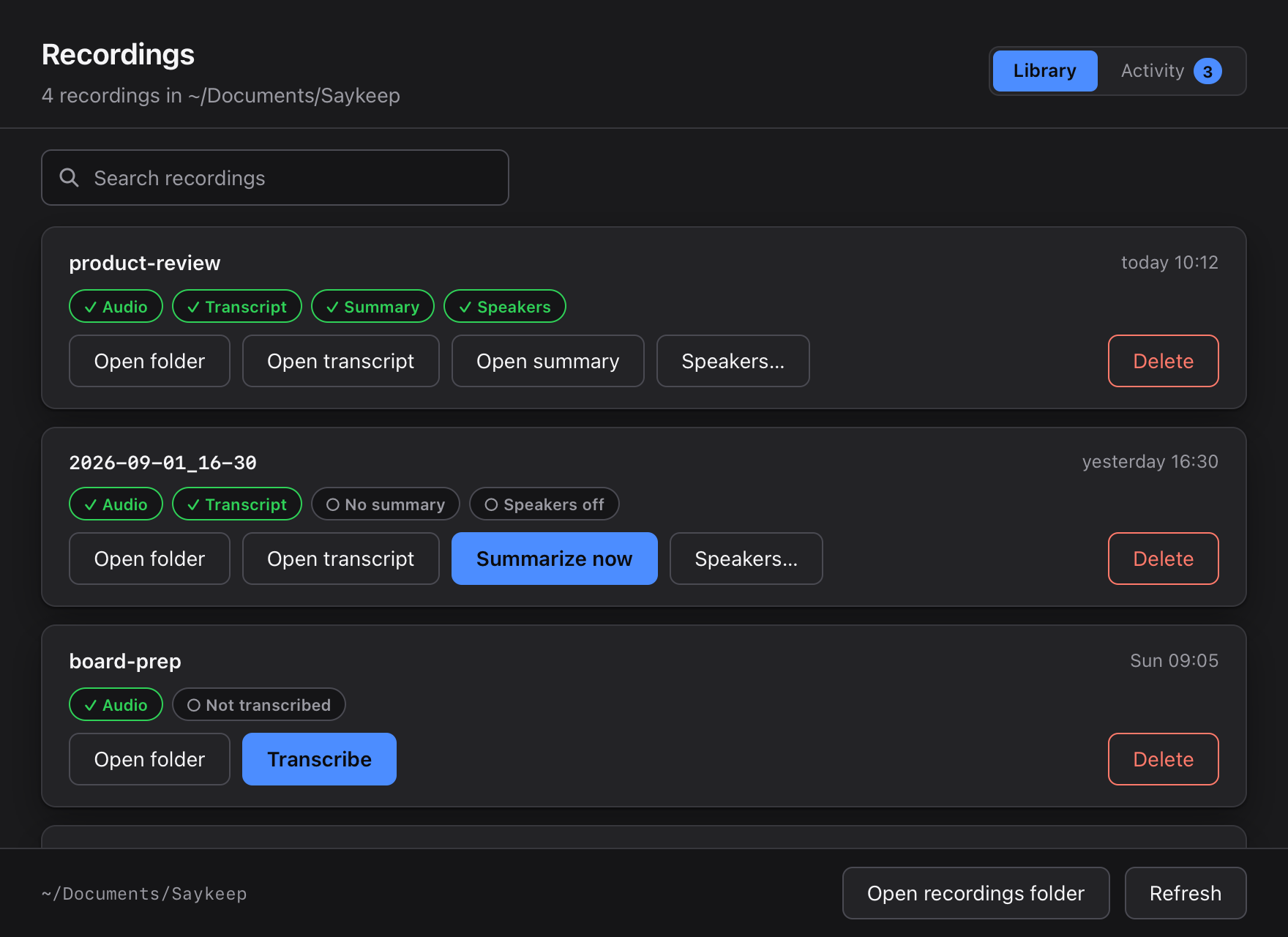
Who said what, labelled on your Mac.
Speaker labels are on by default. The first time, Saykeep downloads one small model (about 30 MB) from models.saykeep.app, with no account and no token; after that, labelling works without the network. It is most of the wait: switch it off in Settings ▸ Transcription ▸ Speaker labels and an hour of call takes about 3–7 minutes instead of about 35, on the M5 we measured.
In Recordings, press Speakers… on a meeting: each voice comes with two sample quotes and a name field. Rename “Speaker 1” to a real name, and Save names rewrites that meeting’s transcript with it. Voices on your own microphone are labelled “You”; for a meeting in a room, where your mic hears everyone, switch on Settings ▸ Transcription ▸ Label speakers on your microphone too.
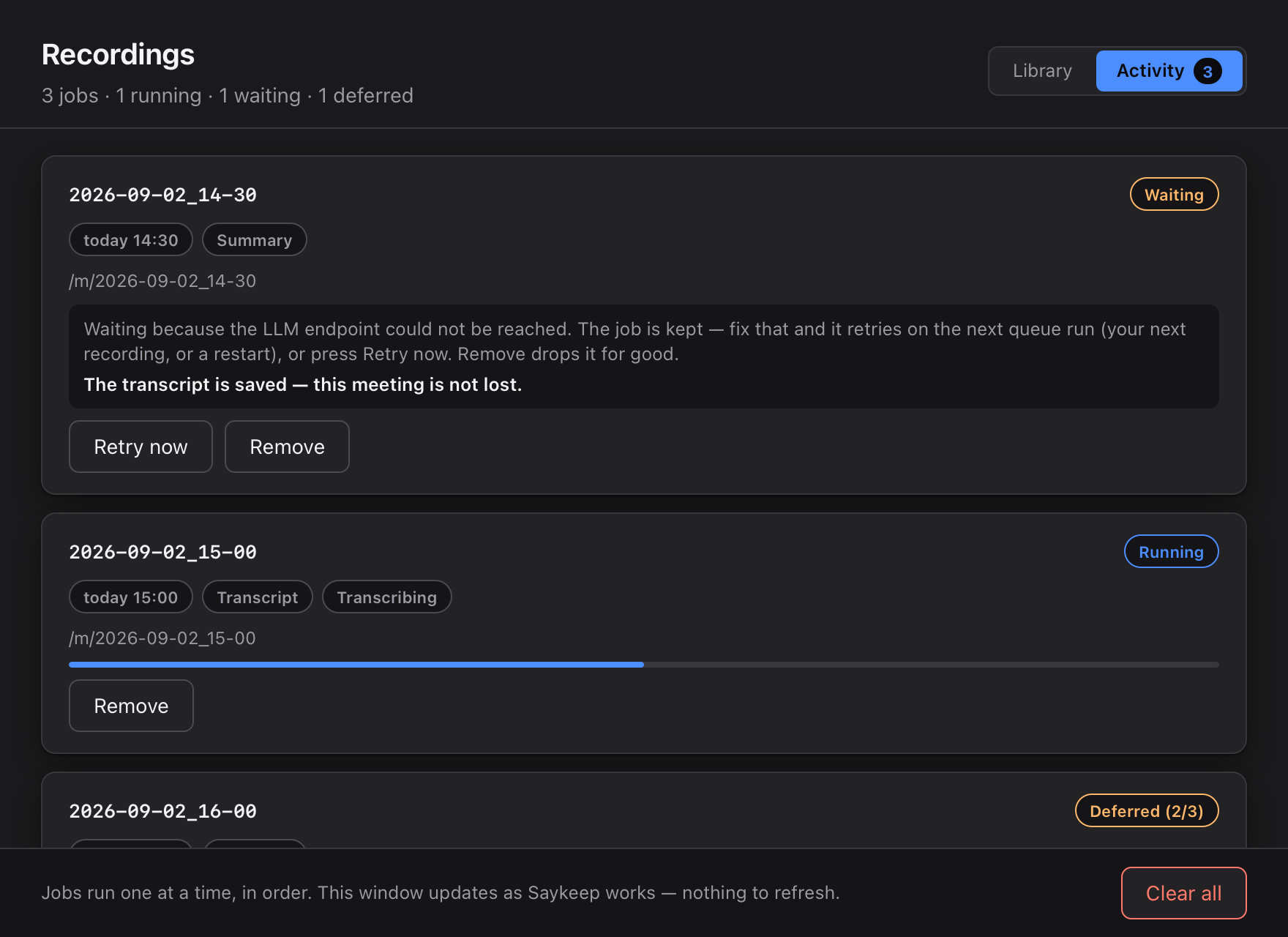
The transcript is made in the background, after the call.
Stop the recording and carry on: Saykeep transcribes the call, labels the speakers and, if you connected a model, writes the summary, one job at a time, in order. Recordings ▸ Activity shows what it is doing and what is waiting. If your model can’t be reached, the summary waits and tries again with your next recording, after a restart, or when you press Retry now; the transcript is already saved.
A summary has three parts
Topics · Decisions, each marked Decided or Discussed · Action items, where the model is instructed to tag an owner on every item: the person at the microphone, a participant named out loud, or Unassigned. The text is written by the AI endpoint you connect; without one, the summary step is skipped.
## Topics- The beta ships once scope is locked.## Decisions- [Decided]: Lock the scope on Friday.## Action items- [Charlotte]: Write the announcement.- [Sebastian]: Have the setup guide ready by Friday.
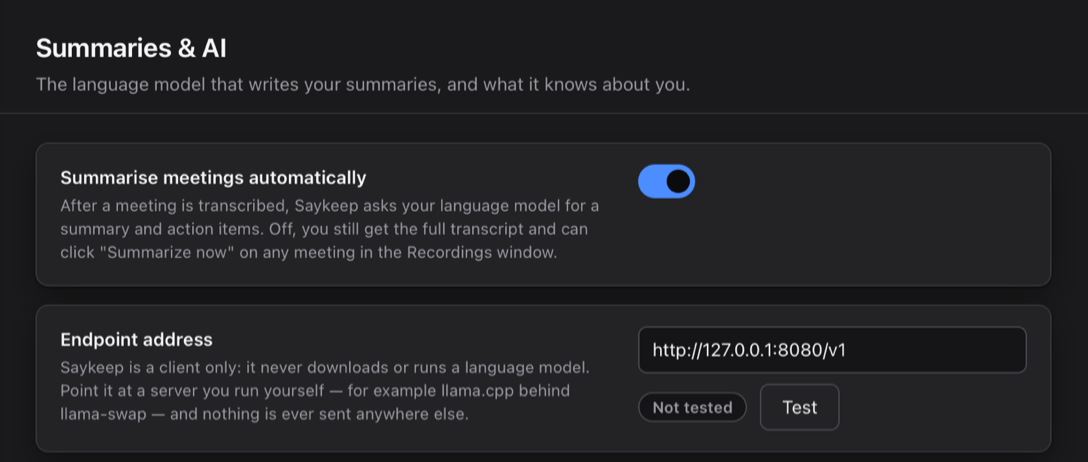
Summaries come from a model you connect.
Saykeep doesn’t run a language model of its own; for summaries you point it at one. With a free model on your Mac, served by LM Studio or Ollama, the summary is made on your Mac too. With your own API key for an OpenAI-compatible service, the transcript text goes to that provider, with your name and “about you” note if you filled them in, and never your audio.
Settings ▸ Summaries & AI asks for the endpoint address, the model name and, if your service needs one, an API key, which is stored in your Mac’s keychain. Test tells you whether the endpoint answers. Until an address is set, summaries are off.
ChatGPT Plus doesn’t include API access, so it can’t be connected here. Without a model you still get the full transcript with speaker labels, and Summarize now in Recordings writes the summary later, once you connect one.
Hold a key, speak, release.
Hold the key you chose and speak. About a second after you let go, once the model is warm, the text is on your clipboard, ready to paste into any app. Choose Settings ▸ Privacy & Storage ▸ Dictated text ▸ “Insert it where my cursor is” and Saykeep pastes it where you were typing.
It listens only to your microphone and keeps only the text — no audio file is written (a debugging option that keeps your last 20 clips is off by default). Dictation never starts the system-audio capture.
A custom vocabulary (a plain text file of your names and jargon, on your Mac) fixes their spelling in dictated text and in what the summariser reads, and hands Whisper the same list as a glossary hint while it transcribes. The saved meeting transcript is left as the model actually heard it.
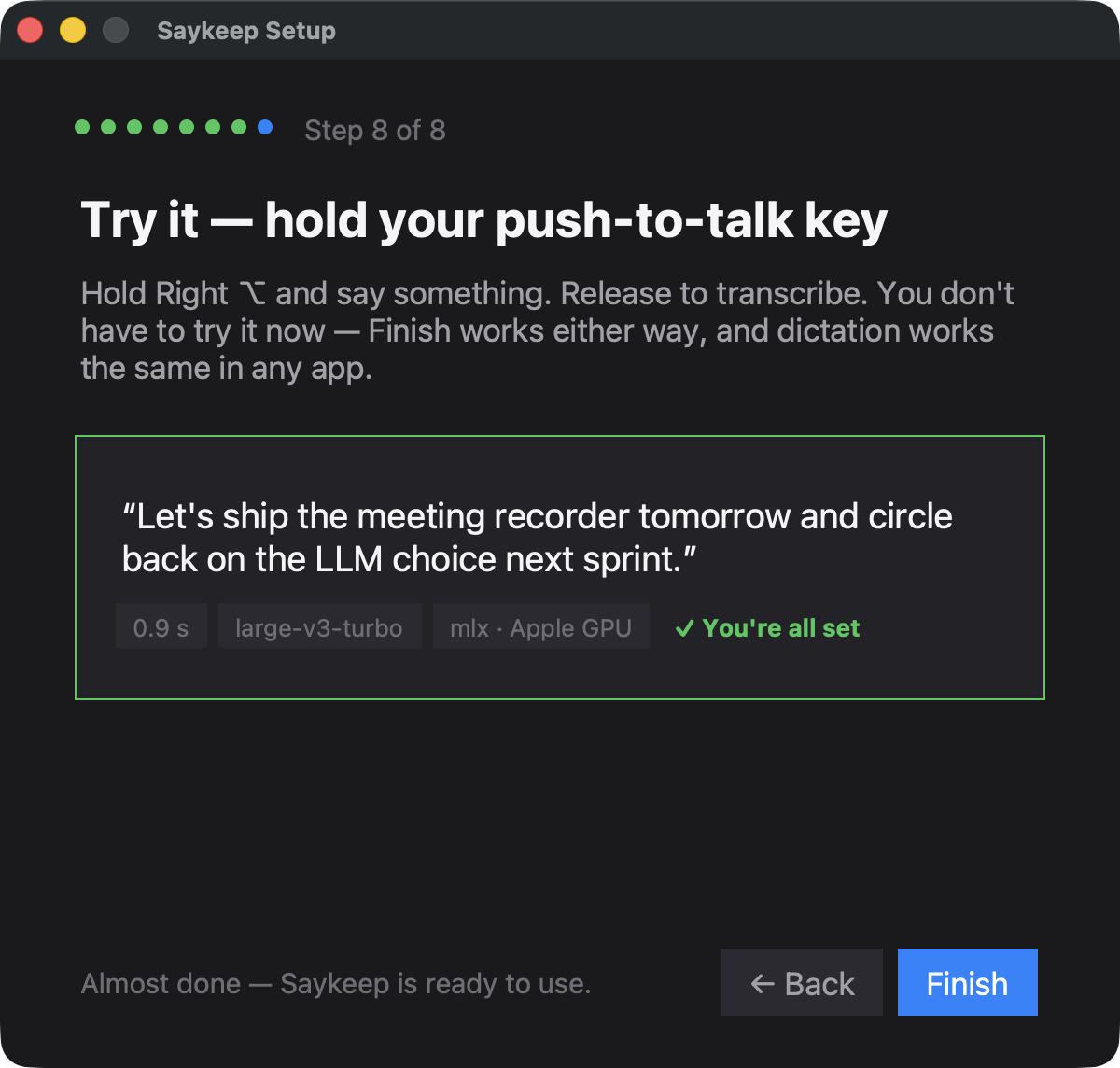
The on-device decode of a dictation of up to 30 seconds, once the model is warm: median 0.89 s across 101 dictations from the developer’s own logs on one Apple M5 Mac (32 GB), Whisper large-v3-turbo on the GPU — fastest 0.6 s, slowest 10.5 s, measured before the text is pasted. Longer dictations take proportionally longer; there is no cap. On a memory-pressured Mac the first dictation after a long idle has taken several seconds longer while macOS paged the model back in; since 0.3.7 that reload starts the moment you press the key (not yet re-measured).
The default models on a 100-sentence sample of the public FLEURS test set per language (read speech, not meeting audio), transcribed on one Apple M5 Mac with stock settings: roughly one word in twenty wrong, in both languages. Names and specialist terms are where any model slips; that is what the custom vocabulary is for.
Whisper large-v3-turbo for dictation and Whisper large-v3 for meetings, both running on your Mac’s GPU through mlx-whisper. Dictation is the model’s own output plus your vocabulary fixes: punctuated, with no rewrite pass and no cloud. The language is detected for each recording unless you name yours in Settings ▸ Transcription ▸ Spoken language; we have measured English and Polish. Pick a smaller model there if you want speed over accuracy.